Playing on your phone
Open MU Dawnrise in your phone's browser and play with your thumbs, with on-screen controls and full-screen menus.
Updated:
MU Dawnrise runs in your phone’s browser, nothing to install. When the game detects a touch screen in landscape, it switches to a phone layout: bigger buttons, a joystick, and menus that fill the screen. On a computer nothing changes.
Getting in
- Open the game from Play now on the home page, using Chrome (recommended).
- Turn the phone to landscape.
- Your first tap asks the browser for full screen and locks landscape. If you leave full screen, the next tap asks again.
- Optional: install it as an app from the browser menu. Launched from your home screen it opens already in full screen and landscape.
iOS Safari has no full screen for a web page, so that step is skipped there. Turning the phone to portrait leaves the phone layout; turning it back brings it back.
Login
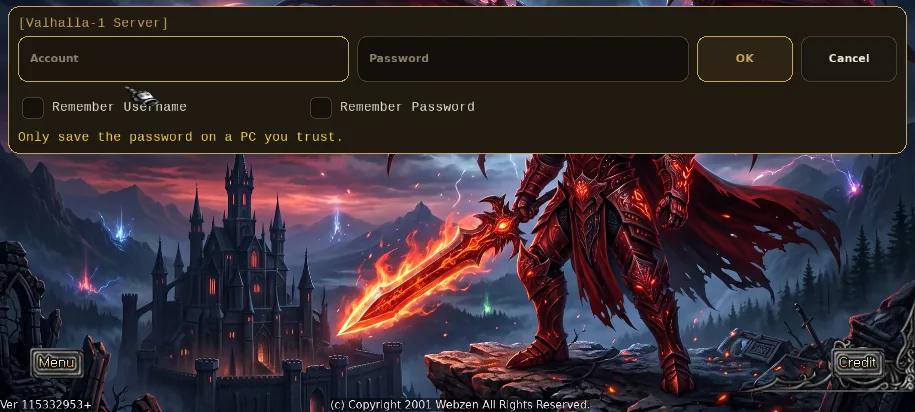
The login is a single row along the top: account, password, OK and Cancel, with the two “Remember” switches under it. Servers appear as buttons: pick a group, then a server. Tap a field and your phone’s keyboard opens; the screen shrinks to fit above it, so the row stays visible.
Controls
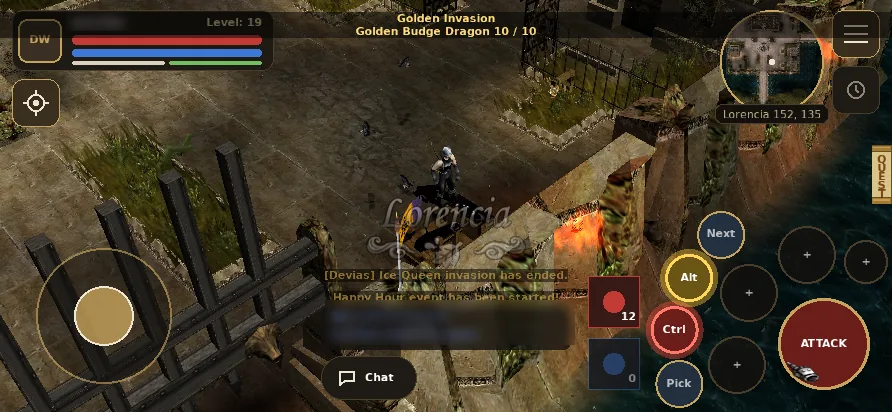
- Joystick (bottom-left): drag to walk in that direction, relative to the camera. Let go to stop. Tapping the ground still walks and tapping a monster still attacks it.
- Attack (big round button, bottom-right): attacks the monster you have targeted, or the nearest one within 8 tiles.
- Four skill buttons on an arc around Attack: they are your skills 1 to 4 and show each skill’s icon. A + means the slot is empty; tap it to choose a skill (see below).
- Potions: red for health, blue for mana, with how many you have. A tap drinks from your belt.
- Second ring, from the bottom up:
- Pick: walks to the nearest item on the ground (within 6 tiles) and picks it up.
- Ctrl: a toggle. On, your attacks and skills can hit other players (PvP). Glows red.
- Alt: a toggle. On, the names of items on the ground stay visible. Glows amber.
- Next: locks the next nearby target.
You can hold the joystick and press a button at the same time. While the joystick is walking, Attack and the skill buttons wait.
Locking a target
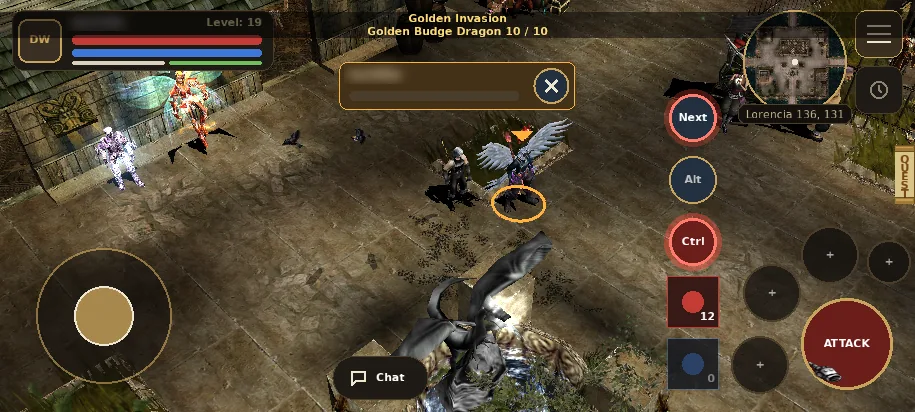
Tap a monster or another player to lock it: a ring appears under it and a frame at the top shows its name and health, with an X to release it. While a target is locked, Attack and the four skills go at it, even if something else is closer.
- Next steps through nearby targets, nearest first. With Ctrl on, players come first.
- The lock releases when you tap the X, when the target dies or leaves the screen, or when you change map.
- A locked player is attacked without you needing Ctrl on.
The HUD
- Top-left: your portrait, name, level, and health, mana, shield and AG bars.
- Below it: the Move button (see below).
- Top-right: a round minimap with the map name and your coordinates, and two buttons: Menu and MU Helper, which starts and stops it.
- Bottom-centre: the last two chat lines and the Chat button.
Menu
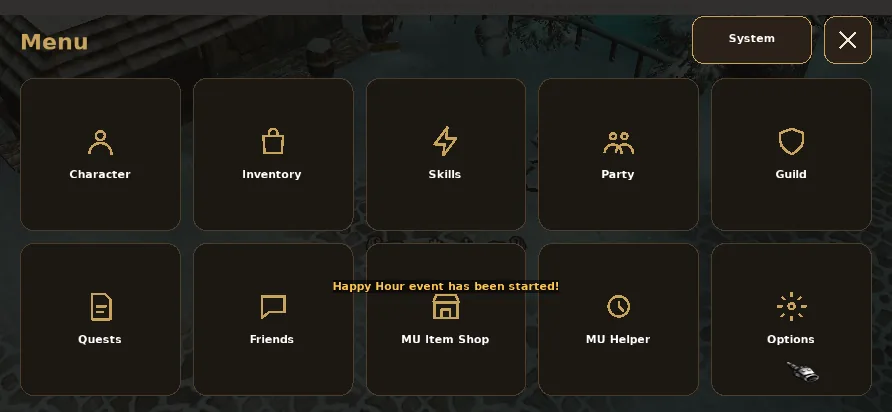
The Menu button opens a screen with ten big tiles: Character, Inventory, Skills, Party, Guild, Quests, Friends, MU Item Shop, MU Helper and Options. Friends needs level 6, as on the computer. The System button opens the system menu (Exit Game, Select Server, Switch Character, Option), which on a computer is the Escape key.
Chat
Tap Chat to open the chat panel. Colours tell the message type: normal, party, guild, whisper and system lines each have their own. It keeps the last 200 lines; drag to scroll and tap Latest to jump back to the newest.
- Channel buttons: Normal, Party, Guild and, if you have a Gens influence, Gens, plus Whisper. For a whisper, type the player’s name in the box beside it; it starts with the last person who whispered you.
- Commands such as
/movework in any channel. - The chevron folds the chat back into two lines.
Full-screen screens
Close any of them with the X at the top-right.
Inventory
Tap an item to select it and see its full details on the right. Then tap a free cell or an equipment slot to move or equip it, or tap a jewel and then an item to apply it. Tap the selection again to deselect. Use and Drop are big buttons under the details; items the game protects still ask or refuse, as on the computer. Drag inside the details to scroll long descriptions.
Merchant
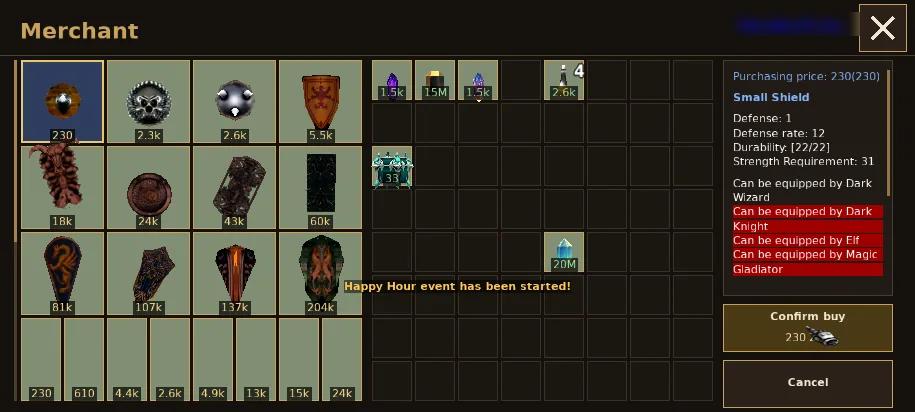
The merchant’s goods are on the left with their prices, your bag beside them. Tap an item to see it, then Buy or Sell; each one asks you to confirm. You can Repair one item or Repair all. If you lack the zen or the room, the screen tells you and sends nothing.
Chaos Machine
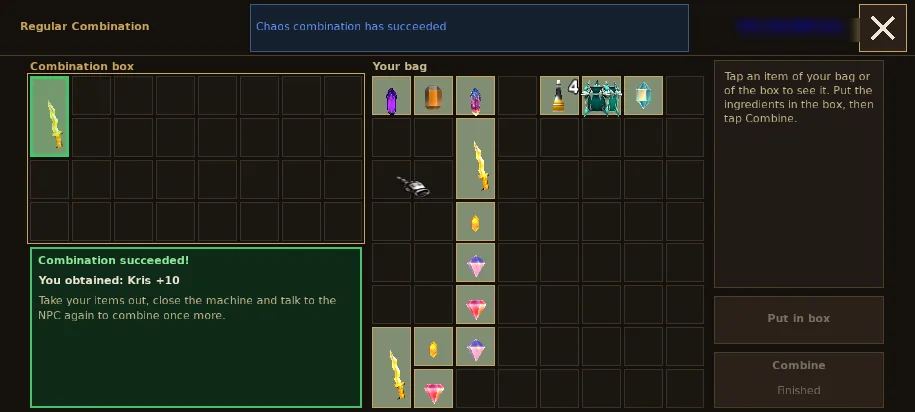
Put your ingredients in the combination box. The screen shows the recipe, its success chance and the zen cost, and Combine only lights up when the combination is valid. Afterwards a green panel (success) or red panel (failure, with what you lost) shows the result. Take your items out and close the machine before combining again.
MU Item Shop
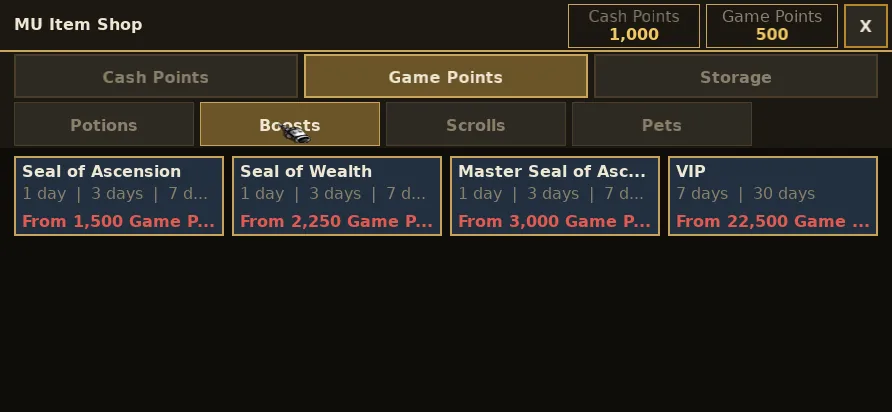
Open it from Menu, MU Item Shop. The top shows your Cash Points and Game Points. Tabs: Cash Points, Game Points and Storage; categories (Potions, Boosts, Scrolls, Pets) sit under them. A product sold for several durations is one card; open it and pick the duration. Buy asks for a second tap (“Pay N …”) before it charges you. What you buy waits in Storage: pick it, tap Use, and confirm. See the MU Item Shop guide.
Skills
Tap a + on the arc, or the Skills tile. Every skill you can use is a tile; the selected one shows its details. Tap a skill and then one of the four buttons (or the other way round) to put it there. Remove from button empties it. It is saved right away.
MU Helper
Open it from the Menu tile. Five tabs: Hunting, Healing, Buffs, Pickup and Other, with big sliders, switches and pickers. Save stores your settings; Start and Stop run the helper (it does nothing in a safe zone). The clock button on the HUD only starts and stops it. Like on a computer, it keeps running in the browser if you switch tabs: see Playing in the browser.
Move
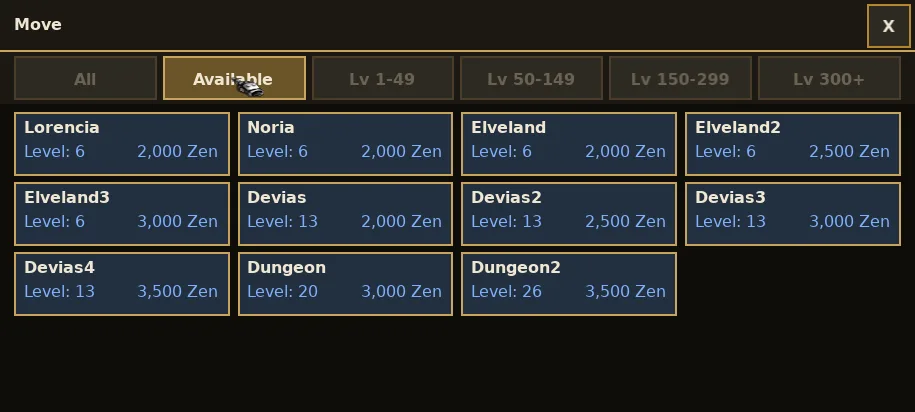
The Move button under your status box opens the list of maps you can warp to. Each card shows the map, the level it needs and the zen it costs; maps you cannot enter are greyed, and what you are missing is in red. Filter with All, Available or a level band (1-49, 50-149, 150-299, 300+). Tapping a map you can enter warps you right away, with no confirmation, and the cost is charged. Drag the list to scroll it.